Account setup
Amazon setup
Set up your authenticator key with a visual walkthrough.
Amazon profiles normally require both a verified authenticator secret key for two-step verification and healthy IMAP coverage for the Amazon account email. Start by adding or editing an Amazon profile in Profiles, then connect the matching mailbox under Mailboxes & IMAP. New and edited profiles must meet the authenticator requirement.
Staff can enable an off-by-default exception for a legacy Amazon profile that already has a stored password but no authenticator key. An eligible profile is sent to the runner with Browser Login and may require an interactive Amazon login. The exception does not bypass IMAP readiness and does not allow a profile with no stored password or one that has an existing but unverified authenticator key. Profiles with a verified key continue to use Request Login.
Open Amazon security settings
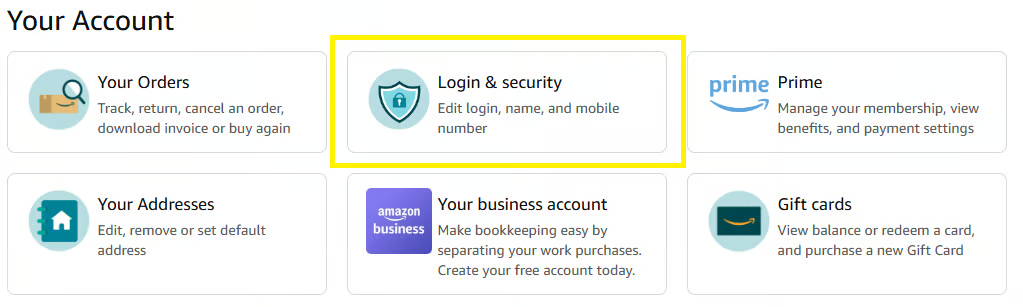
Sign in to Amazon and open Your Account → Login & security.
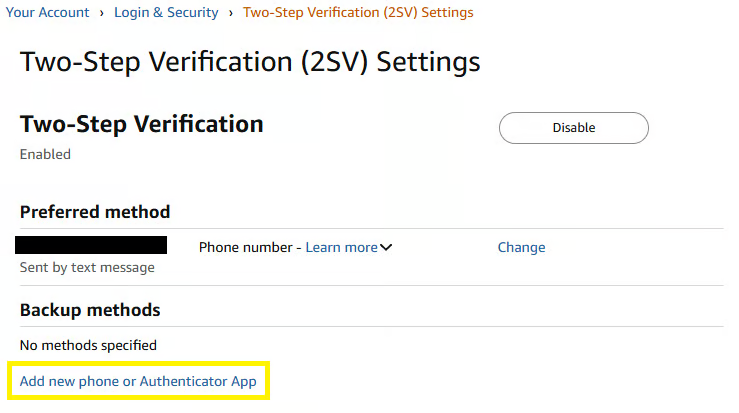
Open Two-Step Verification Settings. Depending on your account, select Edit, Get Started, or the option to add a new phone or authenticator app.
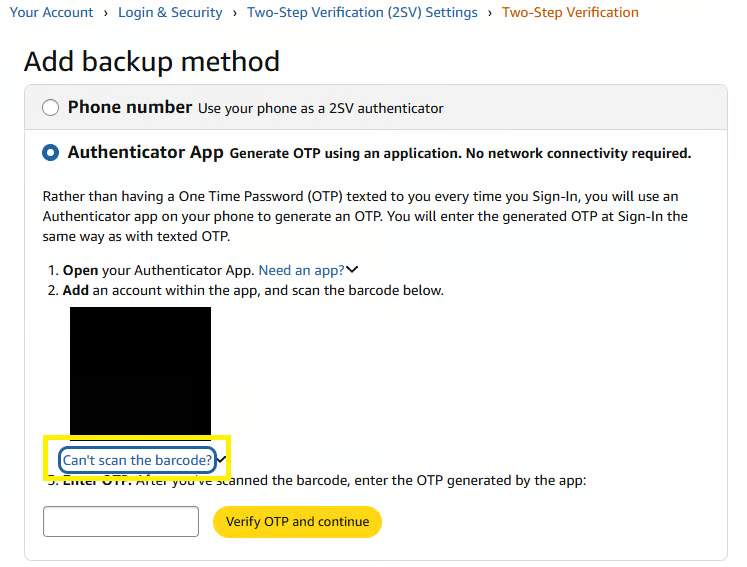
Choose an authenticator app
Select Authenticator App, then choose Can't scan the barcode? to display the original secret key.
Save the original key
- Add the original secret key to your authenticator app.
- Use the generated verification code to finish Amazon's setup.
- Paste the original secret key into Amazon authenticator key in your TXPL profile and enter a fresh six-digit code. TXPL checks the code against the key and does not store the code.
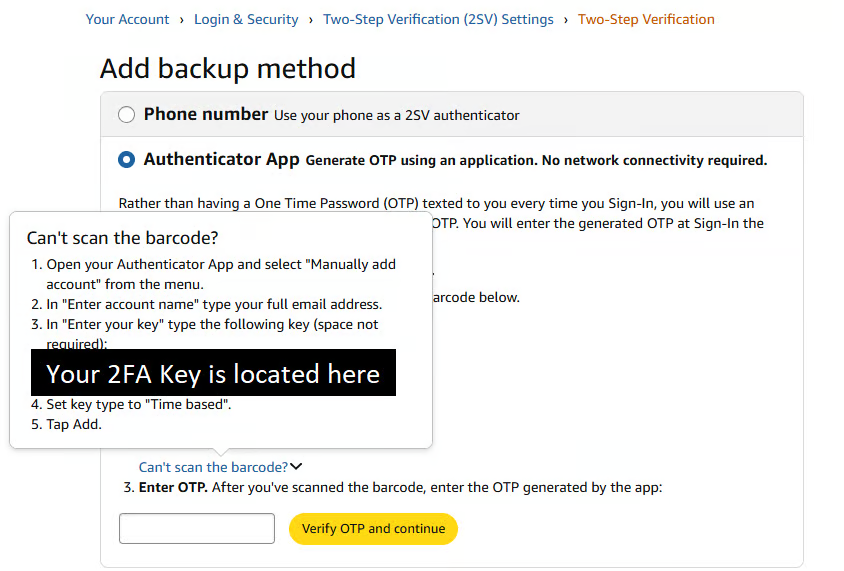
Use the original secret key, not the six-digit code that changes over time. Keep the key private and enter it only in the profile form.
These screenshots illustrate the setup flow; Amazon may use slightly different labels in your account.
Check checkout details
Keep a valid default shipping address and payment method saved in Amazon. The card in your TXPL profile should match that payment method so its CVV is correct. Choose the account type requested by the form and save the profile.
If you replace your authenticator setup later, update the stored key in your TXPL profile as well. Blank fields marked as stored keep their existing value.
Check readiness
Return to Profiles and confirm that Login readiness says 2FA verified. If setup still fails, verify that Amazon accepted the authenticator setup. Contact staff with the profile reference and the error text; do not send the key itself.
If staff have enabled the legacy exception for your keyless profile, its readiness warning may remain even though it can be included in a pull. Browser Login is less automatic and may stop for an interactive Amazon sign-in, so adding and verifying the authenticator key remains the preferred setup.